Microsoft Edge
Open work links in Edge
Edge is the work browser. Use it for policy pages, training links, and sites your supervisor bookmarks. It is separate from Safari.
Open a page
1 of 5
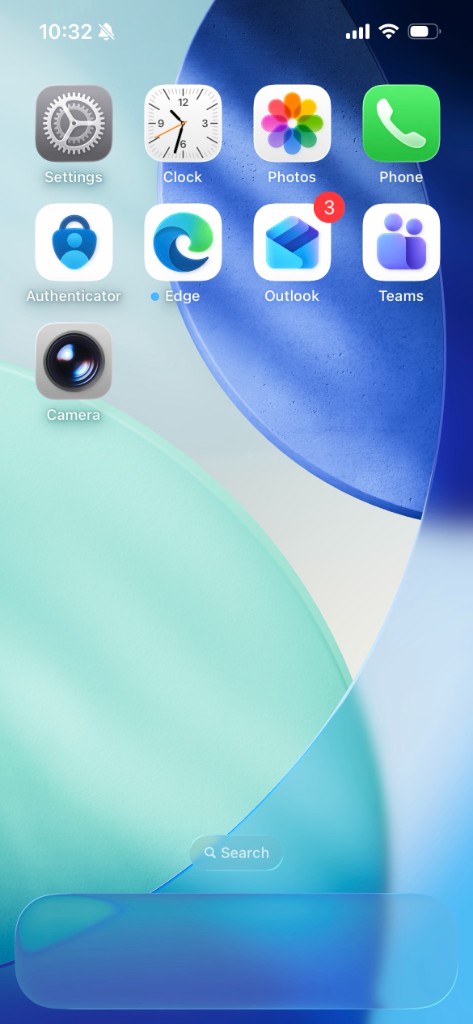
Tap the Edge app.
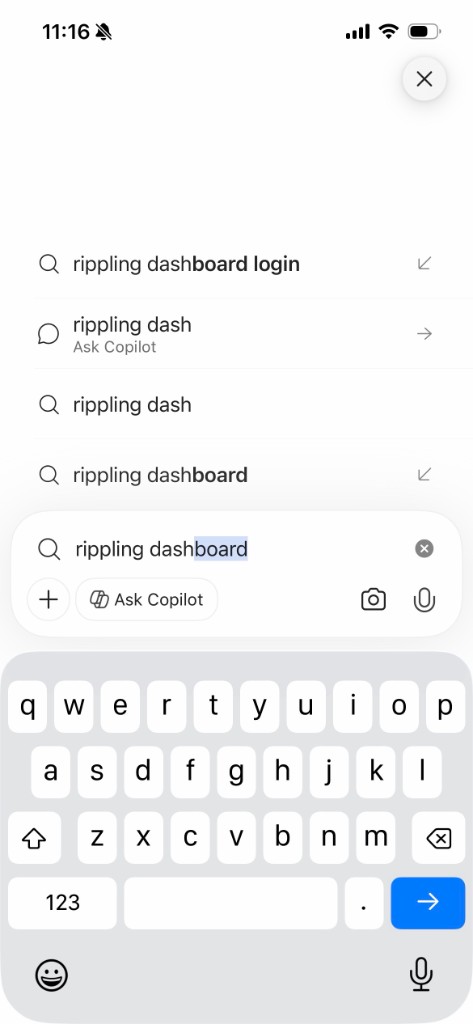
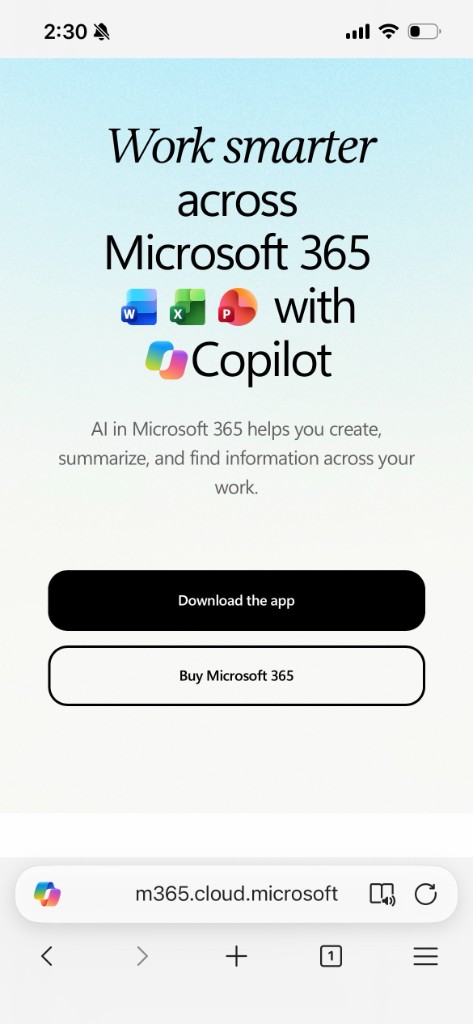
Tap the address bar at the bottom.
Type the site name or words to search, then tap the blue arrow.
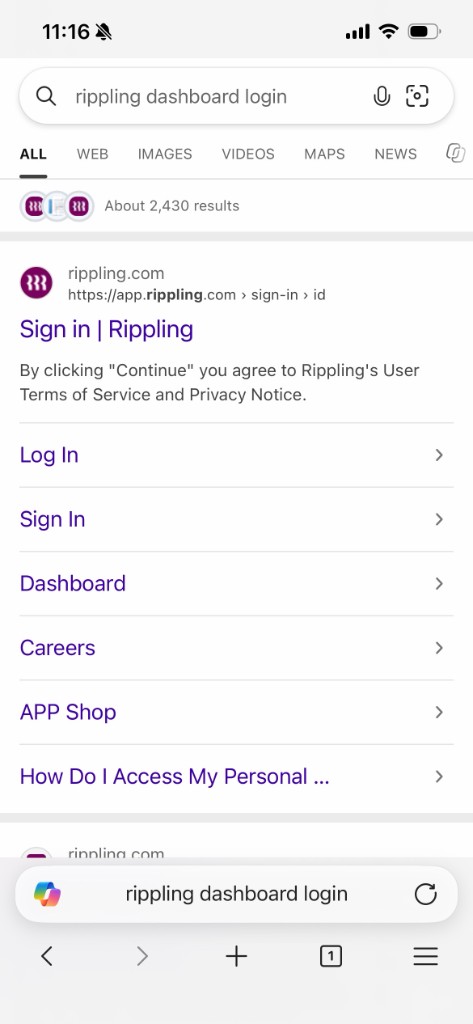
Tap the result you need.
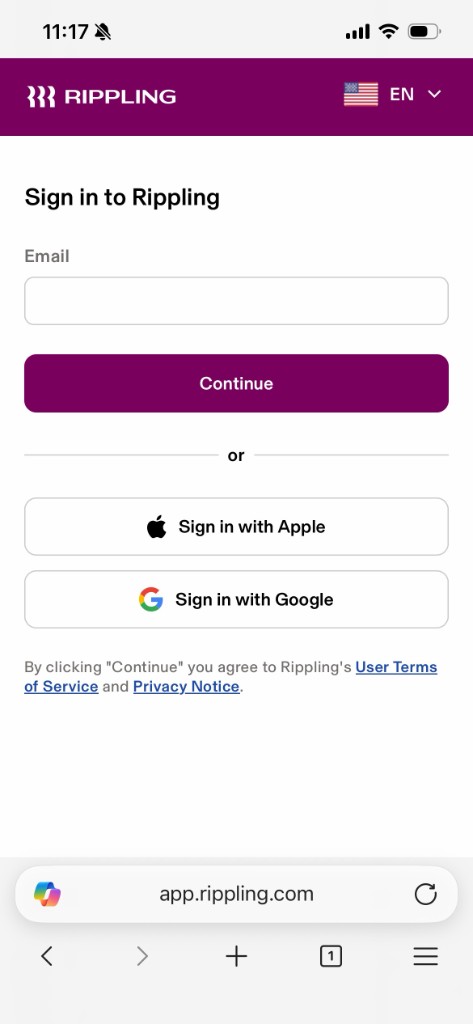
Check the address at the bottom before you type a password. It should be the work site you expected.
Save a favorite
1 of 5
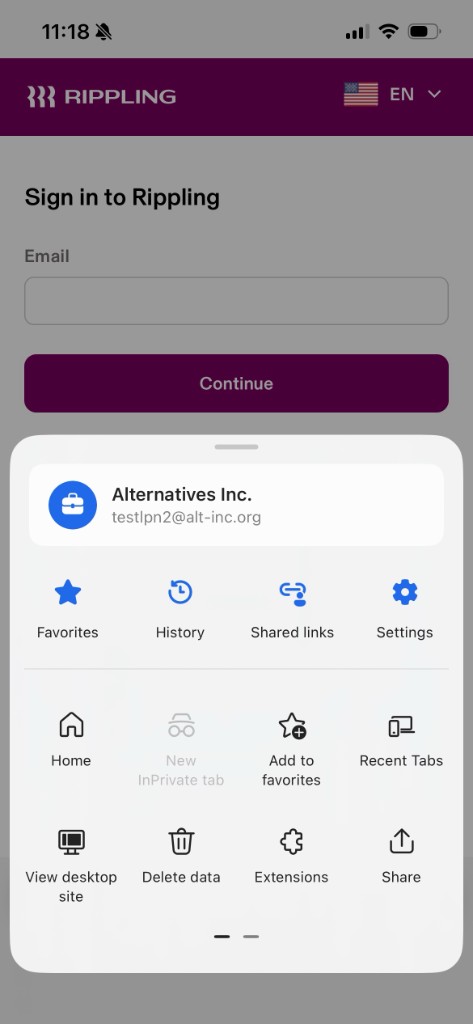
On the page you want to save, tap the three lines at the bottom right.
Tap Add to favorites.
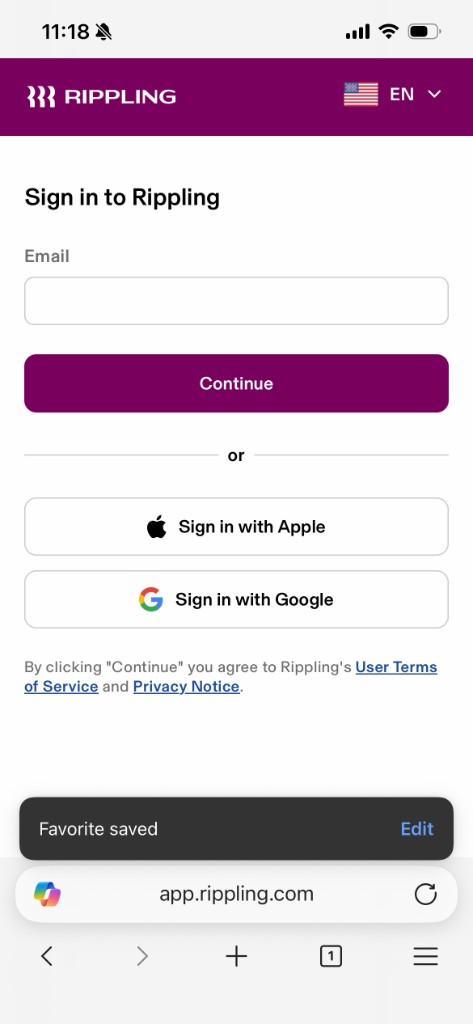
Favorite saved means the page is stored.
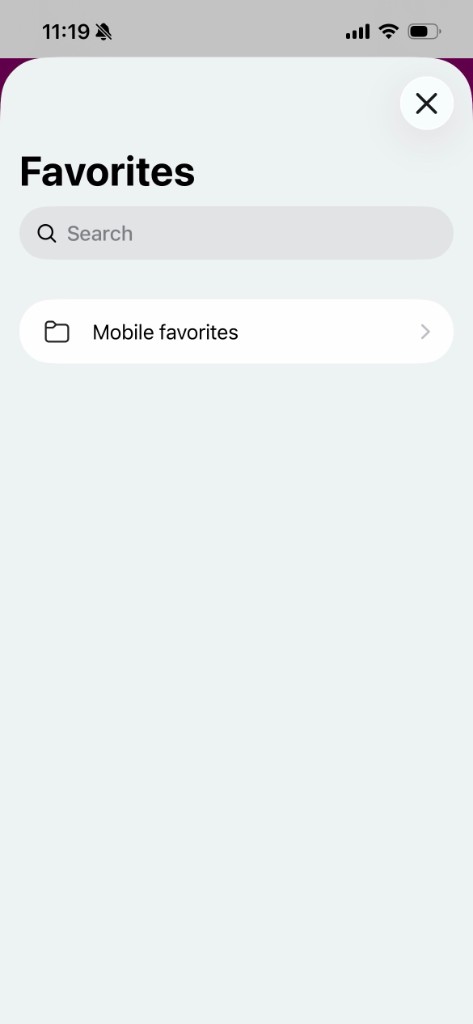
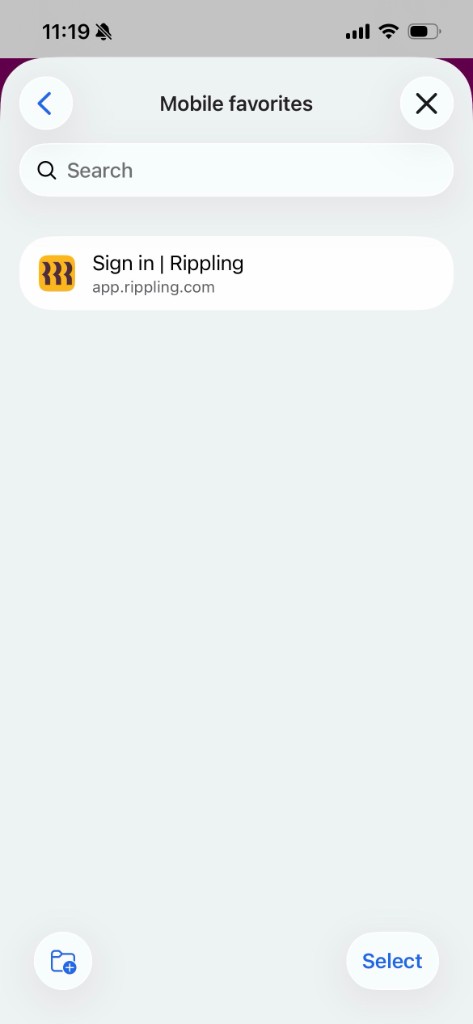
To open it later, tap the three lines, then tap Favorites. Tap Mobile favorites.
Tap the saved page to go to the site.
Use tabs
1 of 6
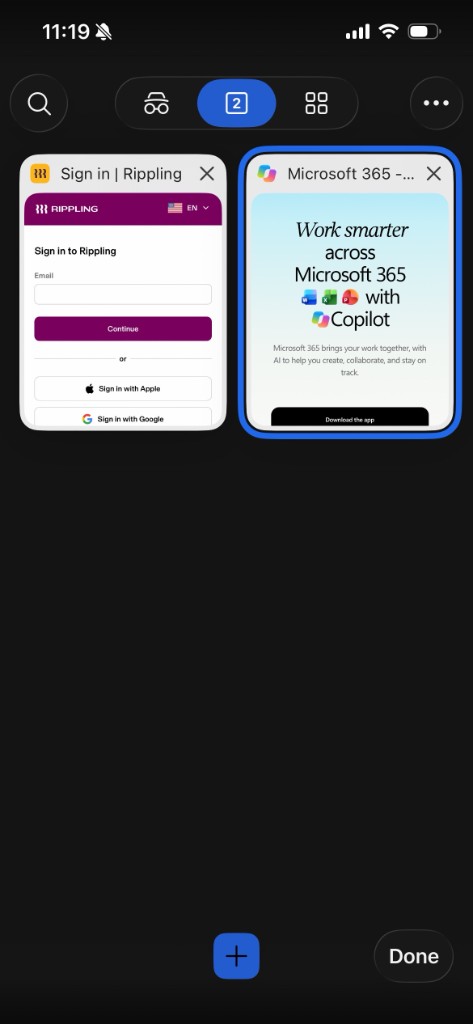
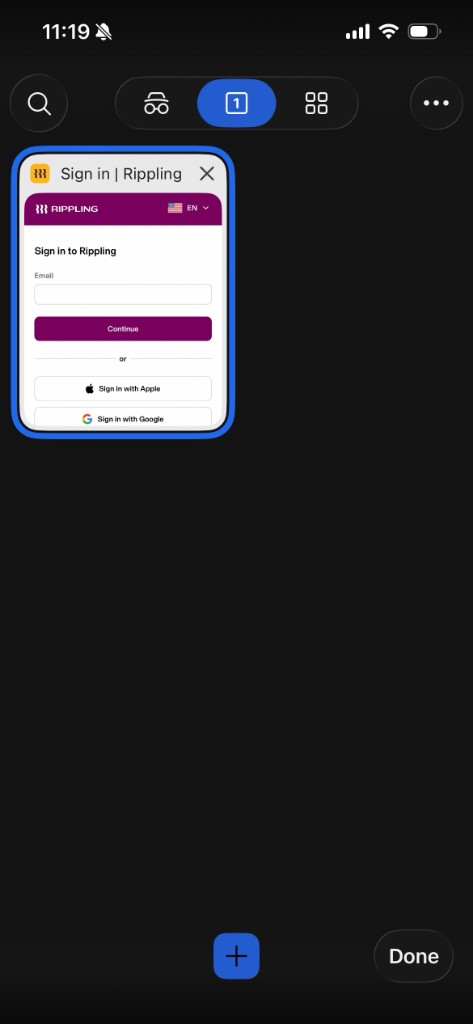
Tap the number at the bottom to see your open tabs.
Tap a page to open it, or tap the plus to open a new tab.
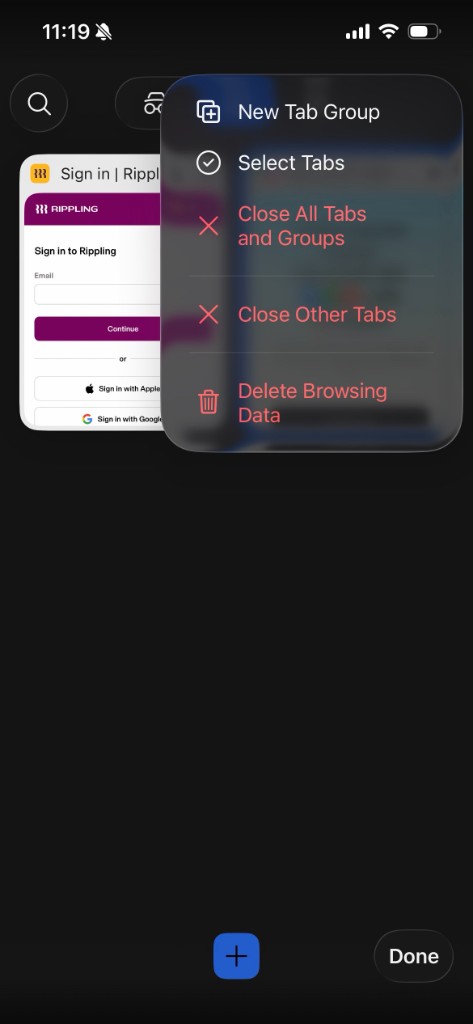
To close a tab, tap the three dots, then tap Select Tabs.
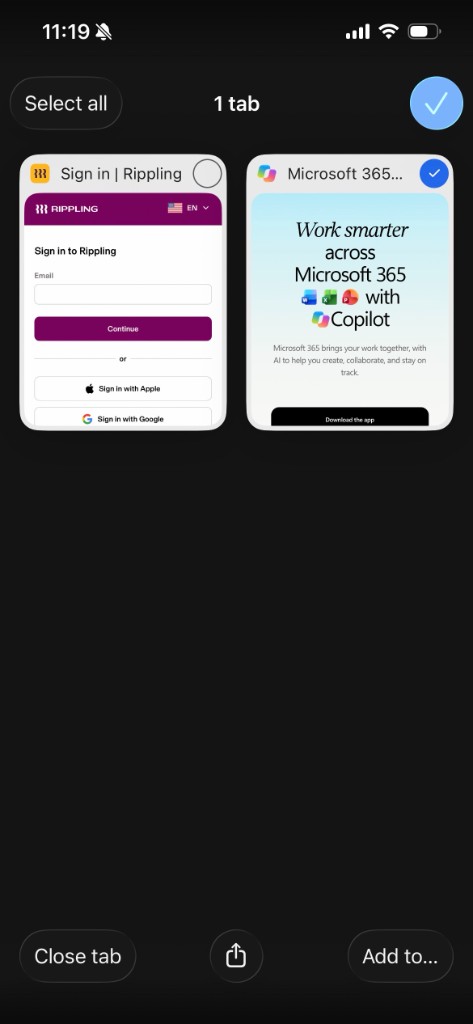
Tap the tab you want to close, then tap Close tab.
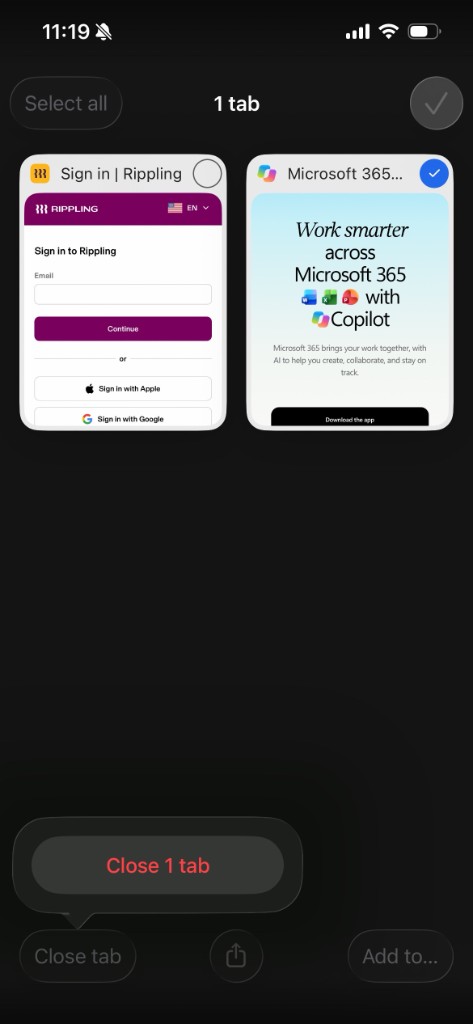
Tap Close 1 tab.
That tab is closed. Tap Done. At the end of a shift, close extra tabs so resident information is not left on screen.